• What should you do if you see a turtle crossing the road?  

    Lots of wildlife species, like turtles, are on the move, especially during the spring, summer and fall seasons. Whether it’s for new territory, breeding, or a simple quest for food, it’s possible that they will wander near or onto roads. Please keep a lookout for wildlife while you’re driving.

    These tips should help us all be aware and keep turtles safe.

    1. Be very careful when moving the animal (it could be injured or it could bite you depending on what species). If possible, sometimes it is best to just stand guard as the animal crosses the road on its own. 

    2. Always keep your own safety in mind – watch out for oncoming vehicles, signal properly when pulling over and recognize your surroundings first before working to help save an animal.

    3. If the animal does need to be moved, put it down on the other side of the road in the same direction it was going. 

    4. Do NOT take it with you. Please only focus on helping it get safely to the other side.

    5. Get involved with local roadside restoration and transportation projects. Getting involved locally can help make roads and roadsides work for transportation and the surrounding wildlife.

    And of course…
    Slowing down is one of the most effective ways to share the road with wildlife. 

  • Originally published on July 14, 2016, for USFWS

    Finding them and their real-world inspiration at national wildlife refuges, fish hatcheries, and more.

    Recently a number of digital wildlife called pokémon have been spotted at many of your national wildlife refuges, fish hatcheries and wetlands, visible only through an appropriately configured smartphone. In an effort to provide a field guide of sorts for people interested in catching these elusive creatures, we also wanted to introduce you to some of their real counterparts. As you come to these places looking for digital wildlife, be on the lookout for these real-world species, too. No app required!

    Please note this blog post in no way suggests you catch wild animals. Please catch only pokémon, stay on trails, and always be safe while exploring.

    Spicebush Swallowtail Caterpillar – Caterpie

    Ryan Hagerty / USFWS || Caterpie photo by Laura Bonneau

    Just like Caterpie, the eyespots of this caterpillar are defense mechanisms against predators. These caterpillars grow into one of the most beautiful and most common butterflies in the eastern U.S. The caterpie pokémon is exhibiting an “everted osmeterium” (what looks like a pair of orange horns), a defense organ that stays hidden until they feel threatened. This particular caterpie spotting was reported by Laura Bonneau at Aransas National Wildlife Refuge.

    Western Diamondback Rattlesnake – Ekans
    Aaron Drew / U.S. Fish and Wildlife Service

    Recently seen at Balcones Canyonlands National Wildlife Refuge, this ekans is very similar (though way more purple) to the Western diamondback rattlesnake that inhabits the region. Both of these snakes have venom and live in grassy habitats. However, there’s nothing virtual about the venom of a rattlesnake. If you are out exploring in rattlesnake territory, please watch your step, for your sake and that of all the creatures around you.

    Red Fox – Eevee

    At Minnesota Valley National Wildlife Refuge both an eevee and a red fox were spotted on the same day! Red foxes and eevees can adapt to several environments and become better suited for them over time. Also—look at their excellent tail and ear similarities. The red fox is also associated with Vulpix!


    Song Sparrow – Spearow

    Recently at Ottawa National Wildlife Refuge, a roaming spearow was spotted on the boardwalk. The sharp calls of the spearow can be heard from half a mile away, and song sparrows are also very vocal birds singing a clattering song that is distinguishable to many who listen for it. Both of these are spotted frequently, so they are good to learn.

    Tadpole – Poliwag

    A poliwag that was found at  Occoquan Bay National Wildlife Refuge shares the hind legs and characteristics with a number of developing tadpoles. In fact, this comparison isn’t even a stretch, because polliwog or pollywog are other names for a tadpole.  

    Pitcher plants – Bellsprout

    This bellsprout was caught at Rachel Carson National Wildlife Refuge.While bellsprout was likely named after a tropical species of pitcher plant, there are a number of carnivorous pitcher plant species that resemble this pokémon and can be found near or on refuges.

    It’s no surprise that pokémon are inspired by real life wild animals and plants. The world around us is full of amazing and exciting creatures to learn about. We can all be inspired by them.  

    — Danielle Brigida, National Social Media Manager

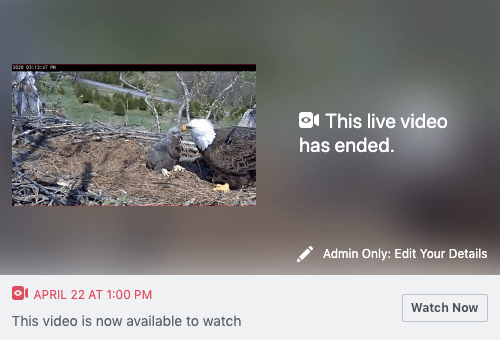
  • Photo of an eagle and eaglet in a nest next to words that say
    Facebook Live –  ways to increase accessibility

    Facebook’s live broadcasting is getting a lot of attention and can be a valuable way to connect to audiences, expand your reach, and share experiences with others. Facebook is currently working to make things more accessible so that anyone can tune in. At the USFWS’s National Conservation Training Center they have been doing live with automated captions. They still need editing afterward, but details for setting it up can be found below. The following instructions were graciously shared from Melissa Gonzalez at the National Conservation Training Center.

    First, you will need to monitor your live video using Facebook Live Producer.

    Here’s one way to get there

    1. Start your live video using a mobile phone or computer.
    2. After going live, use a computer browser to visit your Facebook page.
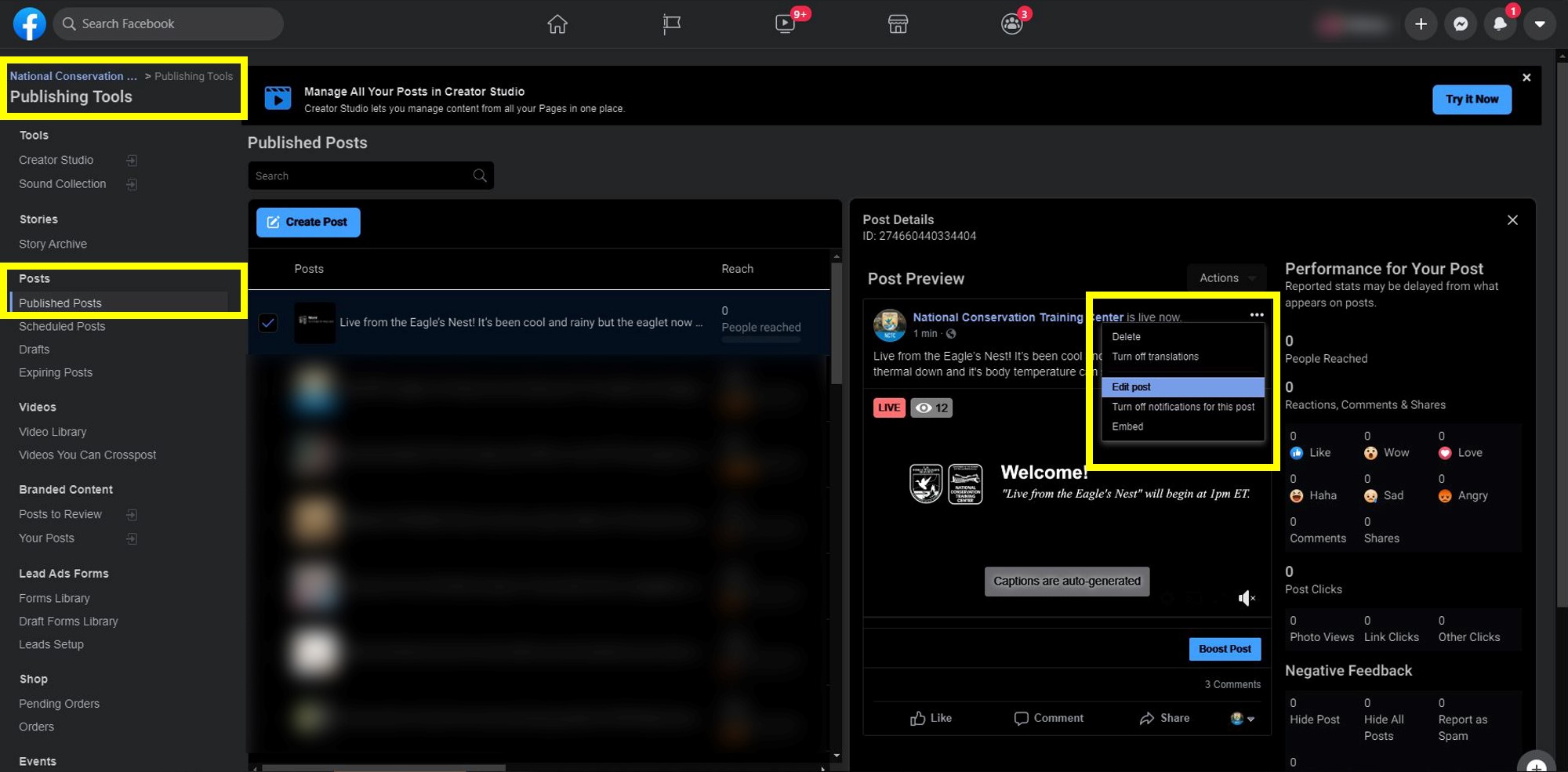
    3. Once on your page, go to “Publishing Tools”. You can find this option in different places, depending on the Facebook View you’re on (“Classic View” or “New Facebook”).
    4. Go to “Published Posts” and click on your live video.
    5. A new window with a preview of your post will open. Click on the ellipsis on the top right, select “Edit Post”. This will take you to open your live video, on a tool called “Facebook Live Producer“.

      1_OpeningFacebook_Live_Producer (1)
      Open Facebook Live Producer and select ‘edit post’.

    Next, enable the auto-generated captioning feature

    Using the Facebook Live Producer tool

    1. Look towards the middle of the screen to find a horizontal menu with a couple of options: Stream Setup, Stream Health, Video Clipping, Polls, Questions, Help.
    2. Click on “Stream Setup”.
    3. Scroll down to “Viewing”, check the “Auto-Generated Captions” box.2_StreamSetUp_Auto-GeneratedCaptions_on
      Ensure the auto-generated captions are turned on in the bottom left corner of your screen.
    4. To confirm that your captions have now been enabled, scroll up and hover over that video preview and a couple of options will show up.
    5. Look for the gear or settings icon. Click on the gear or settings icon.
    6. Choose “Captions [auto-generated]” ON. Make sure the slider is blue and says ON.
    7. Your captions will now show on the bottom left side of the live video preview

    After you finish your broadcast, it’s important you go back through and double-check those captions. Seeing how the captions auto-populate can be informative and a good reminder to speak clearly.  But going back through and fixing these is an important habit to get into.

    Please let me know if you have other tips for making Live more accessible!


  • Using Image Descriptions and Alt Text on Facebook and Twitter

    Did you know you can edit the alt text on your Facebook and image descriptions for Twitter photos? It turns out, increasing the accessibility of the images you post may be easier than you think. This can be useful to consider if you aren’t explicitly describing what’s in the photo when you post. By making a few simple tweaks, you can really increase the access of your content.

    Editing Alt Text on Facebook

    To edit a photo you’ve already uploaded…Screen Shot 2018-02-06 at 12.46.21 PM

    1. go to the photo and select options on the bottom right.
    2. Then select “Change Alt Text”.
    3. Click override automatically generated alt text.
    4. This will bring you to a section where you can change the automatically generated text (which is often a bit broad).

    Screen Shot 2018-02-06 at 12.46.13 PM

    If you’re uploading a photo for the first time, click “Edit Photo” on the image and add the alt text as you’re creating the post.


    Still have questions? This Facebook tutorial may help. 


    Image Descriptions on Twitter

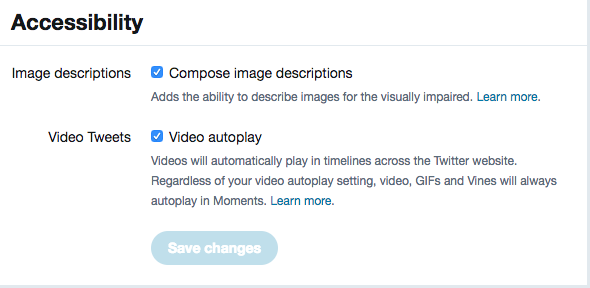
    • First step, make sure “Accessibility” image descriptions and video tweets is turned on under your settings.
    • Edit past images uploaded through your studio library on twitter.
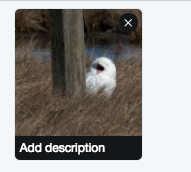
    • When uploading an image add the description by clicking on the line under the image that explicitly says “add description”.

    Accessibility settings in Twitter

    image showing where to add a description

    Remember, Keep your description/text brief: 
    A question to ask yourself is– what is the main idea being expressed by the image? Your best bet is to describe it in simple language, keeping it brief and precise.  A few words or a short sentence should do the trick. If the image is simply decorative, you also have the option to leave out the alt text.  This is similar for when you’re posting a decorative image on the website but you don’t have to use <img src=”decorative.jpg” alt=“ ”>,  you can just leave blank.

    Helpful resources:


    What other ways to you help make social media accessible? Please let us know!

  • Having trouble getting a handle on who your Facebook audience is? Advertising analytics for your page can be illuminating.  By visiting “Audience Insights” through the Ads Manager, you can start to learn a bit more about the behaviors and how the people in your community differentiate from others.

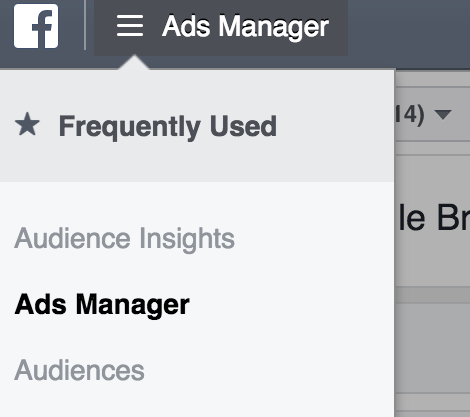
    1) First, go to your “Ads Manager.” page in Facebook. Select “Audience Insights” from the menu at the top left. (In the image below it is grayed out).

    Select Audience Insights

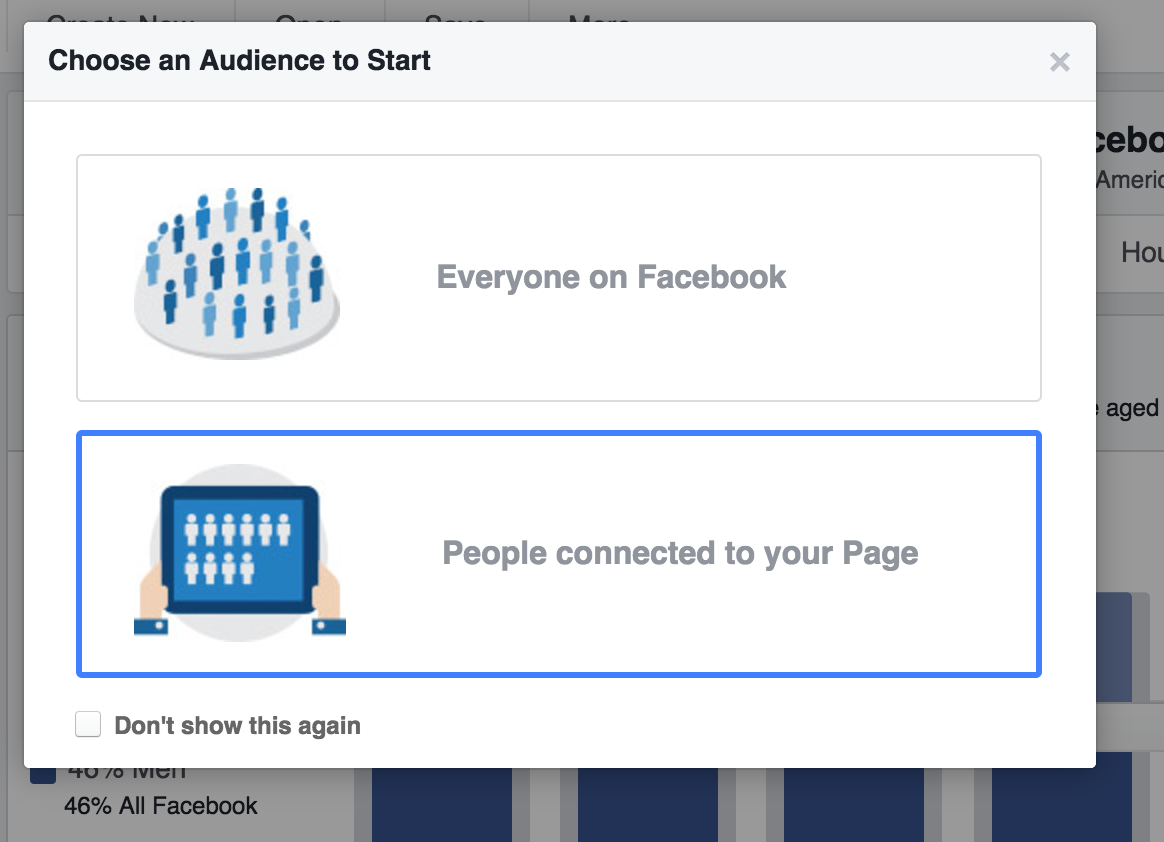
    2) Select People connected to your page (when prompted). You may be asked to take a tour first.

    Screen Shot 2017-08-09 at 12.10.29 PM

    3) In the filters on the left side of the page, under “Pages,” enter the name of your Facebook page in the “People Connected to” box. (Know that you can add multiple pages here to compare audiences).

    Sometimes your page may be labeled as a place, so if you don’t see it in your options initially, select place in the drop down. 

    Start scrolling through some of the information in Insights. By learning overall facts about your audience, you can know what kind of content you want to try. For example, many of U.S. Fish and Wildlife Service pages have a LOT of science and government employees. This makes sense for now, but we definitely want to broaden our audience.

    Screen Shot 2017-08-10 at 10.01.46 AM

    Keep digging and playing and consider your audience whenever you create new content!


  • When Facebook added the crossposting video feature, it opened up an opportunity for brands and organizations to share stats and content behind the scenes (instead of sharing posts from the page). This feature can really help us deliver our videos and combine our efforts. Here are the steps for setting up crossposting.

    1. Go to your page
    2. Select Settings
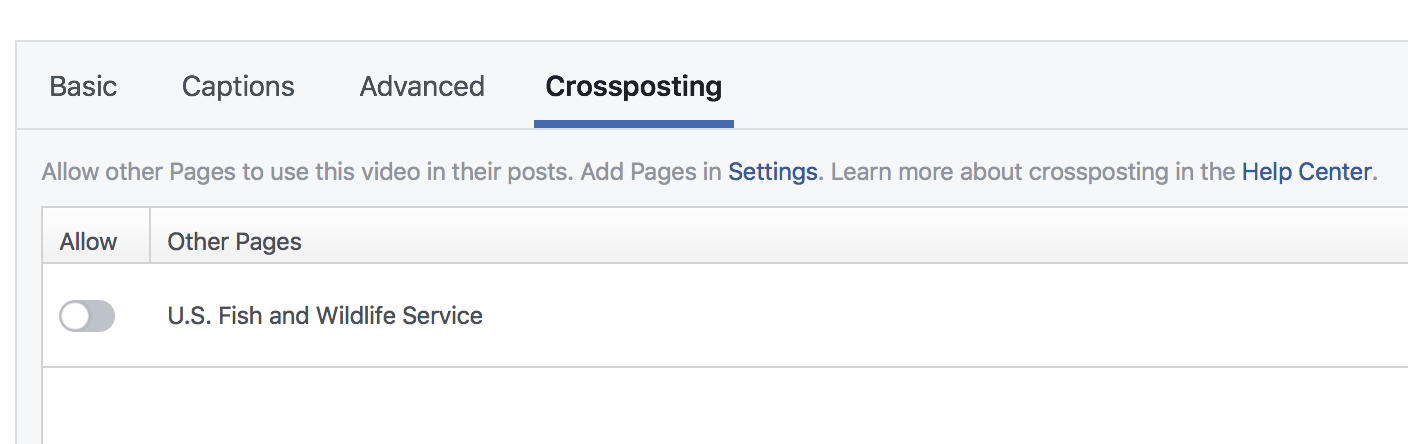
    3. From the left navigation, select crossposting from the list on the left (see below)

    Screen Shot 2017-06-17 at 11.00.27 PM

    4. Add the page you want to crosspost (Like U.S. Fish and Wildlife Service).

    Screen Shot 2017-07-05 at 11.48.12 AM

    Allow Others to Crosspost Your Videos

    It’s up to the page who originates the video to give you crossposting rights, so you’ll need to coordinate with those page managers if you see a video you would like to crosspost.

    1. Select Publishing Tools (top navigation) 
    2. Click on Video Library (Left navigation)
    3. Hover over video you want to crosspost and hit “edit”Screen Shot 2017-07-05 at 11.58.06 AM
    4. Once in the video editor, select the crossposting tab and share it with accounts you have previously added. Screen Shot 2017-07-05 at 11.58.29 AMBy crossposting videos, you increase the visibility and it allows both pages to see the stats and performance metrics. If you create a post that gets crossposted often, you will also see how many times it was crossposted by the users you shared it with!
      Screen Shot 2017-07-05 at 12.04.58 PM
  • Facebook recently removed the feature “Use as my page” which means that finding your feed and acting on Facebook as your page is still possible, but you’ll have to find it in a different way.

    Q: Why don’t I see the the option to use Facebook as the Page I manage?

    We’ve deprecated the ability to login and use Facebook as the Page you manage. However, we’ve built parallel features to enable you to do all of the same things you could previously do, without requiring you to use Facebook as your Page.

    Q: How do I post to the Page I manage as my Page?

    1. Navigate to the Page you manage
    2. In the composer, you’ll see a small square image with either your Page’s profile picture or your personal profile picture. Click on the downward arrow next to this image. This will allow you to toggle between your personal profile and the Page(s) you manage.
    3. Select the icon of the Page you want to post as
    4. Hit publish

    Q: How do I see My Page’s Newsfeed?

    1. Navigate to your Page
    2. Select “View Pages Feed” under your Page’s profile picture
      Note that the option to view the Pages Feed will only be visible if the Page you manage has liked other Pages.
       See page feed

    Q: How can I see my Page’s notifications?

    1. Navigate to your Page
    2. On the white navigation bar at the top of your Page, select “Notifications”

    Q: How can I see my Page’s messages?

    1. Navigate to your Page
    2. On the white navigation bar at the top of your Page , select “Messages”

    Q: How do I post to another Page as the Page I manage?

    1. Navigate to the Page you manage
    2. In the composer, you’ll see a small flag icon. Click on the icon. This will allow you to toggle between your personal profile and the Page(s) you manage.
    3. Select the icon of the Page you want to post as
    4. Post

    Q: How do I like or comment on a post by my Page as the Page I manage?

    1. Navigate to the Page you manage
    2. Scroll to the post you wish to comment on
    3. On that post you’ll see a small square image with either your Page’s profile picture or your personal profile picture. Click on the downward arrow next to this image. This will allow you to toggle between your personal profile and the Page(s) you manage. Select the Page you wish to comment as.
    4. Comment on the post

    Q: How do I like or comment on a post another Page has made as the Page I manage?

    1. Navigate to the Page with the post you wish to like or comment on
    2. Scroll to the post you wish to like or comment on
    3. Click on the flag icon on the bottom right side of the post
    4. Select the Page you want to comment or like as

    Q: How do I like another Page as my Page?

    1. Navigate to the Page you wish to like
    2. In the cover photo next to the like and message options, click on “…”
    3. Select “Like as your Page”
    4. You’ll see a dropdown menu which will allow you to pick which of the Pages you manage to like this Page as

    Q: To unlike a Page that the Page you manage likes:

    1. Navigate to the Page you wish to unlike
    2. In the cover photo next to the like and message options, click on “…”
    3. Select “Remove from my Page’s favorites”
    4. You’ll see a dropdown menu which will allow you to pick which of the Pages you manage you want to stop liking this Page
  • I was honored to present a workshop and keynote at the J.Boye Conference about using social media to enhance your content strategy. The incredibly intelligent and savvy web users from all over the globe that attended this conference taught me a few new tricks for improving the way we work online to better engage with our constituents. From improving usability, creating a customer experience people actually want to engaging with generation y, all gave me new information to chew on and digest.

    Janus Boye and Danielle BrigidaAside from using the digital ecosystem to reach new people, engage better with customers, build out higher quality services, and expand how people use technology and engage with entities, they also let me geek out about wildlife and how we’re exploring using technology to create a more transparent and responsive approach for our Government agency.

    I also wrote about how we’re expanding on successful interactions can create a more enriching experience and give people more context. We hope we can make use of the way people use social media to inform and arm those with the facts they find interesting. As we continue to learn more about how we can serve as a resource, it’s incredibly important to go to conferences like this one to learn best practices across many entities.

  • Trail guideFacebook is constantly changing, but in recent talks with them, it’s apparent that some things are working better than others.

    1. Be Social – Tag other pages, share other people’s content, like other pages and get comfortable using your page like a profile on Facebook. When you do take the time to post, nurture comments and discussion on the post.
    2. Post More Video -Videos are doing well on Facebook’s algorithm right now, and our videos of wildlife would be no exception. Please encourage the use of the *USFWS logo on the video and captioning if there are any words spoken*. Whatever video that’s taken on Facebook should also be posted to our Youtube account so that we make the content as accessible as possible.
    3. Post Often – Quality should come before quantity, but posting often gives you more of a chance to reach more people.
    4. Play with the Platform – Sometimes text heavy posts perform well but if there’s a call to action, keep things short. The best advice is to play with the platform and strive to be different.
    5. Consider Driving Traffic to Our Site – Instead of creating Facebook events- why not share a link to the place to register on our website? Don discussed the benefits of making it easy for people and sending them where we want them to go on our site.
    6. Learn More About Your Audience – Good social media means knowing your audience, and Facebook allows you to do so even using the ad manager even if you aren’t creating an ad. First, go here, then make sure under  “People Connected” make sure you’ve selected the page you want to know more about. Otherwise you can use this link to analyze Facebook’s user base.
    7. Merge Duplicate Pages- It has been available to us for some time to merge pages, recognizing that you lose things from the page you merge into the other.

    When Posting Images…

    • Use Square Photos – The images from Facebook show up better as a landscape rather than portrait style (Around 940px by 788px)
    • With Graphics, Use Less than 20% Text – Text heavy images get ignored by users, so just be sure to follow the rule of using less text.
    • Upload Multiple Images – Instead of creating an album on Facebook, Facebook suggested uploading multiple images as a good technique. *Just please encourage a credit by any field staff so we have proper documentation*.** For USFWS staff
  • Facebook interest lists
    As someone who is constantly trying to break the social tools I use to get people thinking about wildlife, Facebook’s ability to create interest lists has been an incredibly effective way for me to keep tabs on a variety of subjects.

    What is a Facebook Interest List?
    The simple answer is that an interest list is a collection of pages or profiles on Facebook. By creating lists, Facebook allows you to organize and have some control over posts you see other than the standard algorithm they decide for you. When you group pages or subject matter experts, they call them interest lists and this allows you to see timely updates from pages that are part of the lists you follow.
    List of USFWS pages

    How do you create one?
    Most of the lists I have created are collecting pages that represent subject matter experts, an interest or offer resources around wildlife. Creating a list for your own personal or professional needs is quite simple and really the first step is having an idea of what you’d like to include in your list.

    You don’t even have to “like” a page to add it to an interest. So technically, you can watch and observe posts from pages that you don’t want to publicly like through these lists.

    After you’ve created your lists, they will appear in your “bookmarks” section on the left hand side of your home feed.

    Searching Facebook InterestsSearch through Facebook interests.
    If you’re looking to create lists that can serve as a resource for others, consider creating a public interest list that others can follow (very similar to the public lists on Twitter). You can also search for subjects and follow other public lists if you don’t want to create your own.

    While the list has actually been out for several years, I feel like it is often a forgotten tactic in managing and listening on Facebook. Twitter lists are another similar resource, and I’ve found that by grouping by passion or subject, you can keep tabs on the conversations while being apart of a larger conversation.

    Sample lists I’ve made:

    This may surprise you, most of my lists deal with wildlife. But you can make a list that collects and organizes any of your favorite pages that post updates you like. Have you ever used an interest list? If so, what was it?